Basic Linux Shell Scripting for DevOps Engineers
#90daysofDevOps Day-4
As a DevOps engineer, knowing your way around shell scripting is crucial. It's not just about automating tasks, but also about making life easier when managing systems, running deployments, or troubleshooting environments. Today, we’re diving into some shell scripting basics, specifically for DevOps work. Let’s get into it!
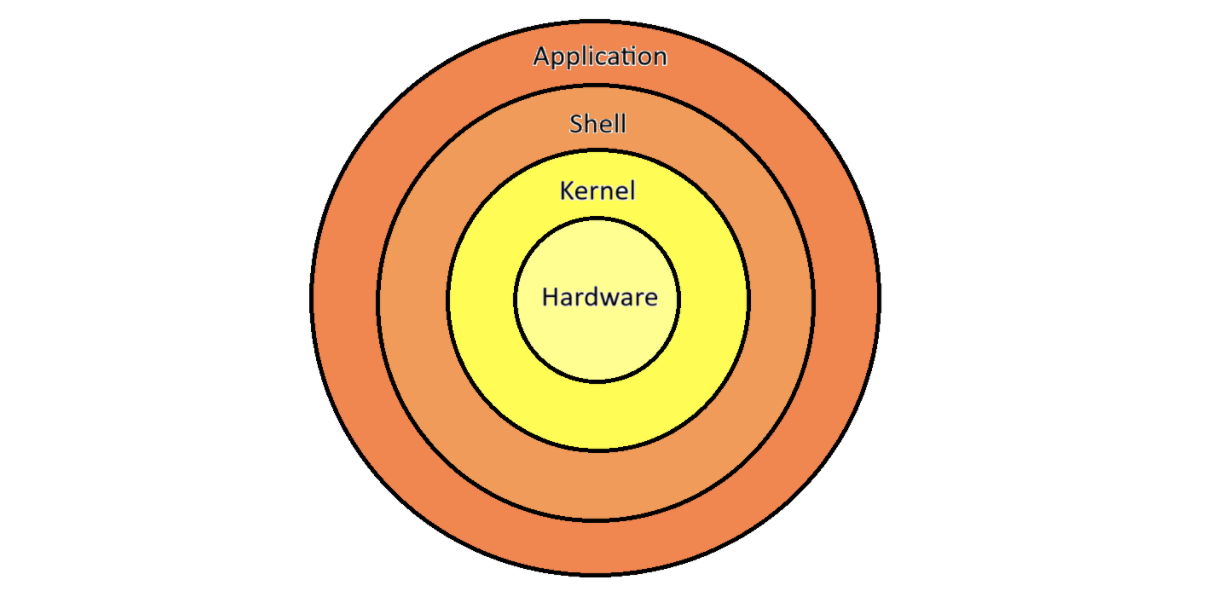
What is Kernel?
Before we get to shell scripting, let's start with the foundation, the kernel. The kernel is the core of a computer’s operating system, responsible for managing hardware and all system processes. It acts as a bridge between software and hardware, making sure everything runs smoothly behind the scenes.
What is Shell?
The shell is what connects you, the user, to the kernel. Think of it as an interpreter between your commands and the system's inner workings. The shell takes human-readable input, converts it into instructions the kernel can understand, and executes those instructions. Every time you open a terminal, you’re interacting with the shell!
What is Linux Shell Scripting?
In simple terms, Linux shell scripting is the process of writing programs (called scripts) that can be run by the shell. It allows you to automate repetitive tasks, perform system administration tasks, and even handle complex workflows. In the DevOps world, shell scripting is a vital skill for automating deployments, backups, monitoring, and much more.
Shell Scripting for DevOps: What Does It Mean?
For a DevOps engineer, shell scripting means automation. Whether you're managing servers, configuring infrastructure, or deploying applications, shell scripts help simplify these processes. Instead of manually executing commands every time, you can write a script once and run it whenever needed. Here’s how shell scripting fits into DevOps:
Automated Deployments: Scripts can deploy code to multiple environments, ensuring consistency across development, staging, and production.
System Monitoring: You can write scripts that check server health, disk space, memory usage, etc., and alert you if something goes wrong.
Backup and Restore: Regular backups can be automated using shell scripts, making sure your data is safe without manual intervention.
In short, shell scripting enables automation, scalability, and efficiency, all key components in DevOps practices.
What is #!/bin/bash?
At the top of most shell scripts, you'll see something like this: #!/bin/bash. This is called the shebang, and it tells the system which shell interpreter to use to run the script. In this case, it’s specifying the Bash shell (/bin/bash). You can also use #!/bin/sh, which invokes a different shell (usually a more basic version). The key difference is that bash has more features than sh, so you'll usually see #!/bin/bash in scripts for more advanced tasks.
A Simple Script: Printing a Message
Let’s start with something easy: a script that prints a message. Here’s a simple shell script that prints out a motivational statement (for anyone taking the 90 Days of DevOps challenge!):
#!/bin/bash
# This script prints a motivational message

echo "I will complete #90DaysOfDevOps challenge."
When you run this script, it will simply print:I will complete #90DaysOfDevOps challenge.
ubuntu@ip-172-31-23-226:~/day4$ bash print_msg.sh
I will complete #90DaysOfDevOps challenge.
Taking User Input and Arguments
Now let’s make it more interactive. You can write a shell script that takes user input and arguments from the command line. Let’s see how to do it:
#!/bin/bash
# Script to take user input and arguments

# Prompt the user for input
echo "What is your name?"
read user_name

# Display the user's name
echo "Hello, $user_name! Welcome to the #90DaysOfDevOps challenge."

# Access arguments passed to the script
echo "The first argument passed is: $1"
echo "The second argument passed is: $2"
When you run the script, it will prompt you to enter your name and print it, followed by any arguments you pass when running the script, like so:
./in_arg_script.sh arg1 arg2
OR
bash in_arg_script.sh arg1 arg2
Example output:
ubuntu@ip-172-31-23-226:~/day4$ bash in_arg_script.sh hello bye
What is your name?
Spoorti
Hello, Spoorti! Welcome to the #90DaysOfDevOps challenge.
The first argument passed is: hello
The second argument passed is: bye
If-Else Statement: Comparing Two Numbers
Lastly, let's cover control structures with an if-else statement. This is useful for making decisions in your scripts, such as comparing values or checking conditions.
Let’s take an example where we compare two numbers:
#!/bin/bash
# Compare two numbers using an if-else statement

read -p "Enter first number: " num1
read -p "Enter second number: " num2

if [ $num1 -gt $num2 ]; then
    echo "$num1 is greater than $num2"
else
    echo "$num1 is not greater than $num2"
fi
The output would look like:
ubuntu@ip-172-31-23-226:~/day4$ bash if_else.sh
Enter first number: 10
Enter second number: 20
10 is not greater than 20
In this case, since 10 is not greater than 20, the script will output:10 is not greater than 20
Conclusion
Today we covered the basics of shell scripting, from printing messages to taking user input and even comparing values with an if-else statement. Shell scripting is a powerful tool that can make your life easier as a DevOps engineer, whether you're automating deployments or managing servers.
If you’re on the #90DaysOfDevOps journey, mastering shell scripting is a must! Keep practicing, and you’ll soon be automating all kinds of tasks.
Happy scripting!